Release Notes
New features, improvements, and what we're building next.
Assistant in Sidecar
Agent ExperienceYou can now open a chat with an assistant in a sidecar: a panel that lives alongside the main view. This way you can ask questions about the files or people you’re looking at without losing context, or having to switch tabs. The history of your sidecar chats can be found in your normal chat history. Maximize the panel to a full chat view or collapse it back to the sidebar at any time.
Tool Updates
Tools & IntegrationsThe read file tool now supports PDF, email, and image formats with limit/offset pagination that defaults to the first ten pages while informing the agent about remaining content. For images, the agent can describe visual contents directly. Every new agent ships with read file and read note tools enabled by default, saving tokens and improving speed by skipping unnecessary context injection.
Search now scopes results by space when operating within a task context, and searches across all accessible spaces when used by the assistant agent. The create note tool respects task ID or space ID parameters, defaulting to the user's My Tasks space when neither is provided. Set task status works across different tasks, not just within the current task context.
Stage Controls
Agent ExperienceStages within a running case are now fully editable. Reorder them, add new ones mid-flight, or delete pending stages that are no longer relevant. Completed stages are locked. For any blocked stage, you can resume (re-invoke the assignee), complete (mark the work as done and move on), or skip (remove it from the current case's workflow).
Stage blocking now cascades: when a stage is blocked, the parent case is blocked. Subtask status rolls up to stage status, which rolls up to case status.
Real-Time Sync
Tools & IntegrationsTasks, messages, notifications, and agent invocations now propagate instantly across all open tabs. Create a task in one window and it appears immediately in another. Change a status, rename something, delete a notification. It's reflected everywhere without a refresh.
This eliminates the lag that made agent-driven updates feel disconnected from the UI. When an agent modifies a task, the user sees it happen. No more stale state, no more manual refreshes to see what changed.
Activity Trail
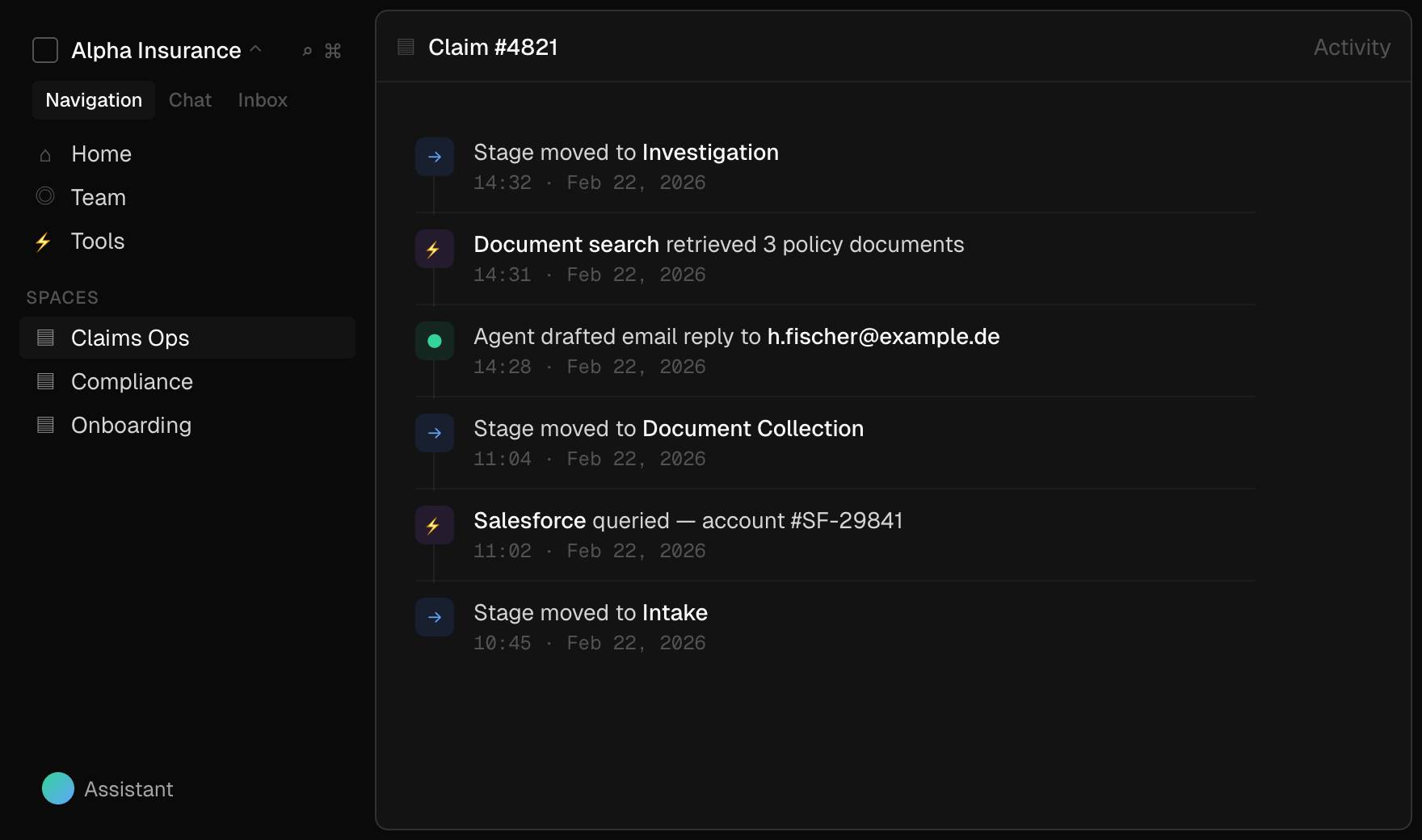
SecurityEvery action taken within a procedure is now logged in a comprehensive activity trail: stage transitions, tool executions, agent decisions. You get full auditability over your processes, showing who did what, when, and at which stage.
For regulated industries or teams that need to demonstrate compliance, this turns informal workflows into auditable ones. The log is available directly in the task view, so reviewing case history requires no extra navigation.
Structured File Processing
Tools & IntegrationsThe assistant can now read and analyze uploaded files directly within a conversation. Upload a spreadsheet, CSV, JSON file, or PDF, and it parses the contents into structured data: column types, row counts, and a formatted preview. For Excel files, it navigates between sheets. For PDFs, it renders page-by-page previews and extracts content.
Ask questions about a dataset, cross-reference a spreadsheet against case details, or pull specific figures from a report without leaving the thread. Supports CSV, TSV, XLS, XLSX, JSON, JSONL, and PDF up to 100 MB.
Private Assistant
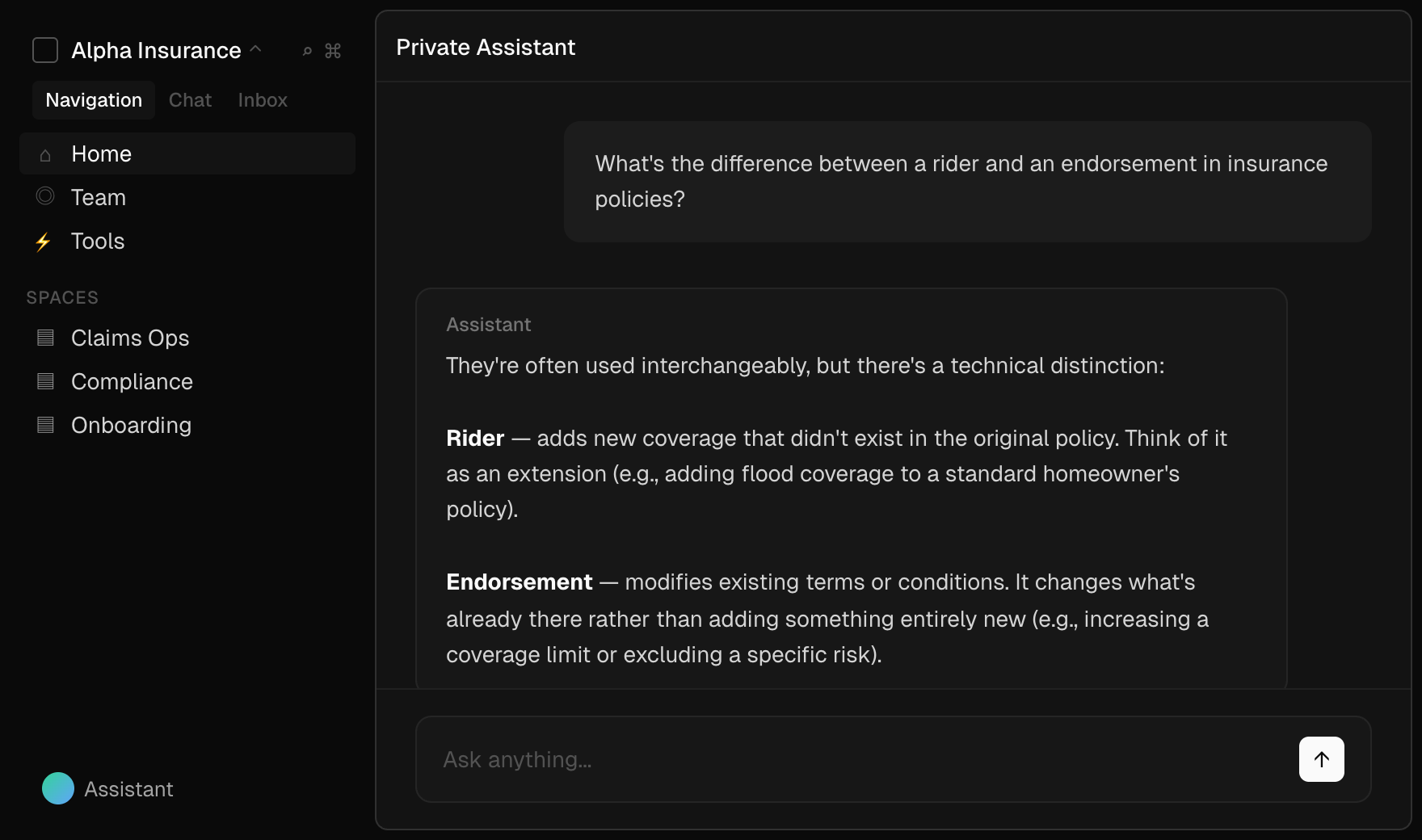
Agent ExperienceYou can now start private conversations with the assistant outside of any task or case. Use it for quick research, brainstorming, exploratory questions, or anything that doesn't belong in a specific case thread.
Private chats live in their own section of the nav, keep their own history, and won't clutter your case data. Think of it as a scratchpad with the full power of the assistant behind it.
Salesforce Integration
Tools & IntegrationsThe assistant can now query and update Salesforce records without leaving Interloom. Ask it to look up an account, check the status of an opportunity, pull contact details, or update a record. It talks to your Salesforce instance directly.
For teams that split their time between CRM and case management, this cuts out the constant tab-switching. The agent can also cross-reference Salesforce data with the current task, pulling in relevant account history or deal status as part of the conversation.
Stages
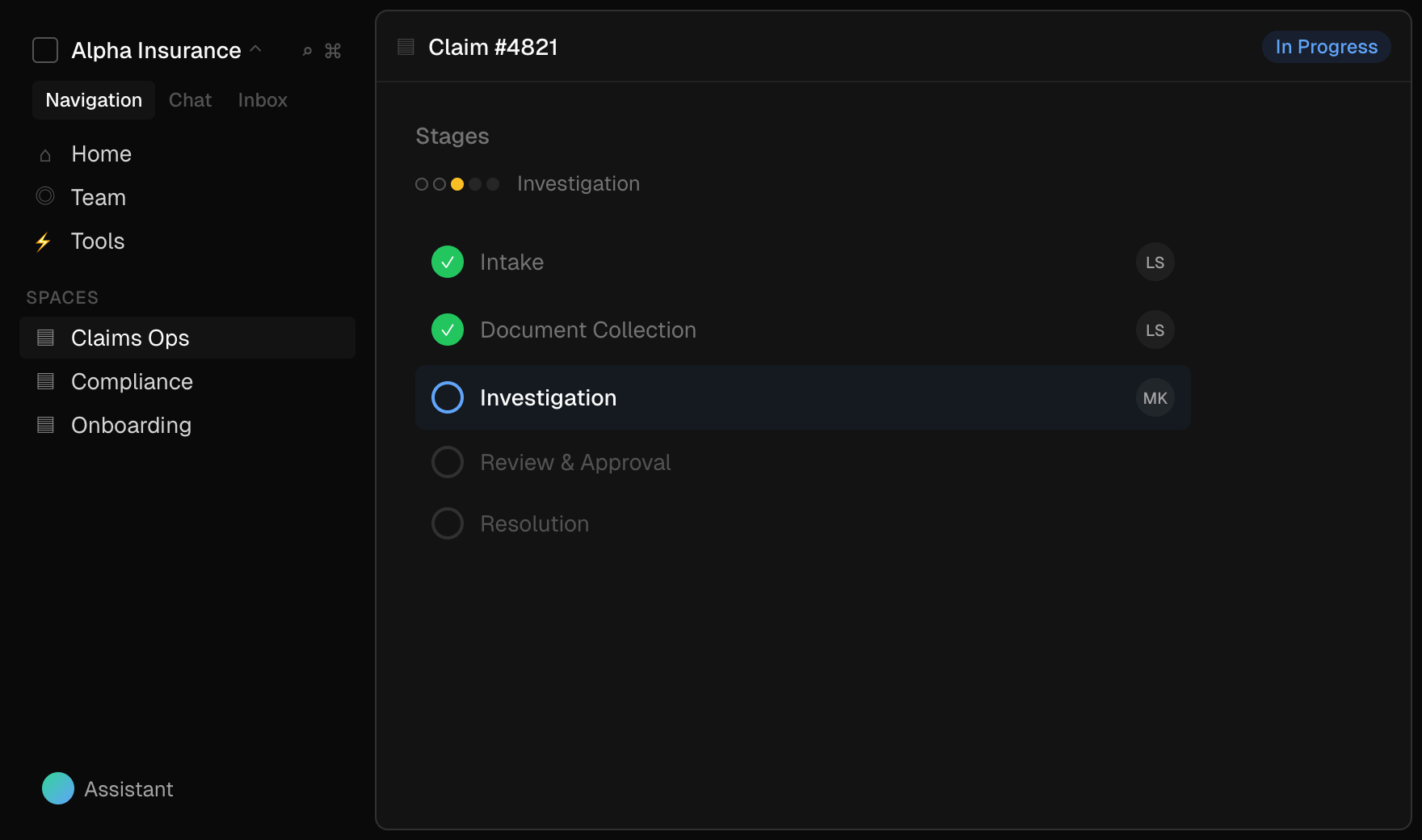
Agent ExperienceStructured, sequential process management for Interloom. Define the phases a case moves through (intake, investigation, review, resolution) and the platform tracks progression automatically. Stages start the moment a first message arrives, so cases begin advancing without manual intervention.
From the task overview, managers can see at a glance which stage every active case sits in across the pipeline.
Teams have full control to create, edit, reorder, and remove stages within any procedure, adapting processes as they evolve rather than locking them in at design time. For standardized workflows like onboarding, compliance reviews, or claims processing, stages replace informal status tracking with visible, enforceable structure.
Email: Drafting, Sending, and Threading
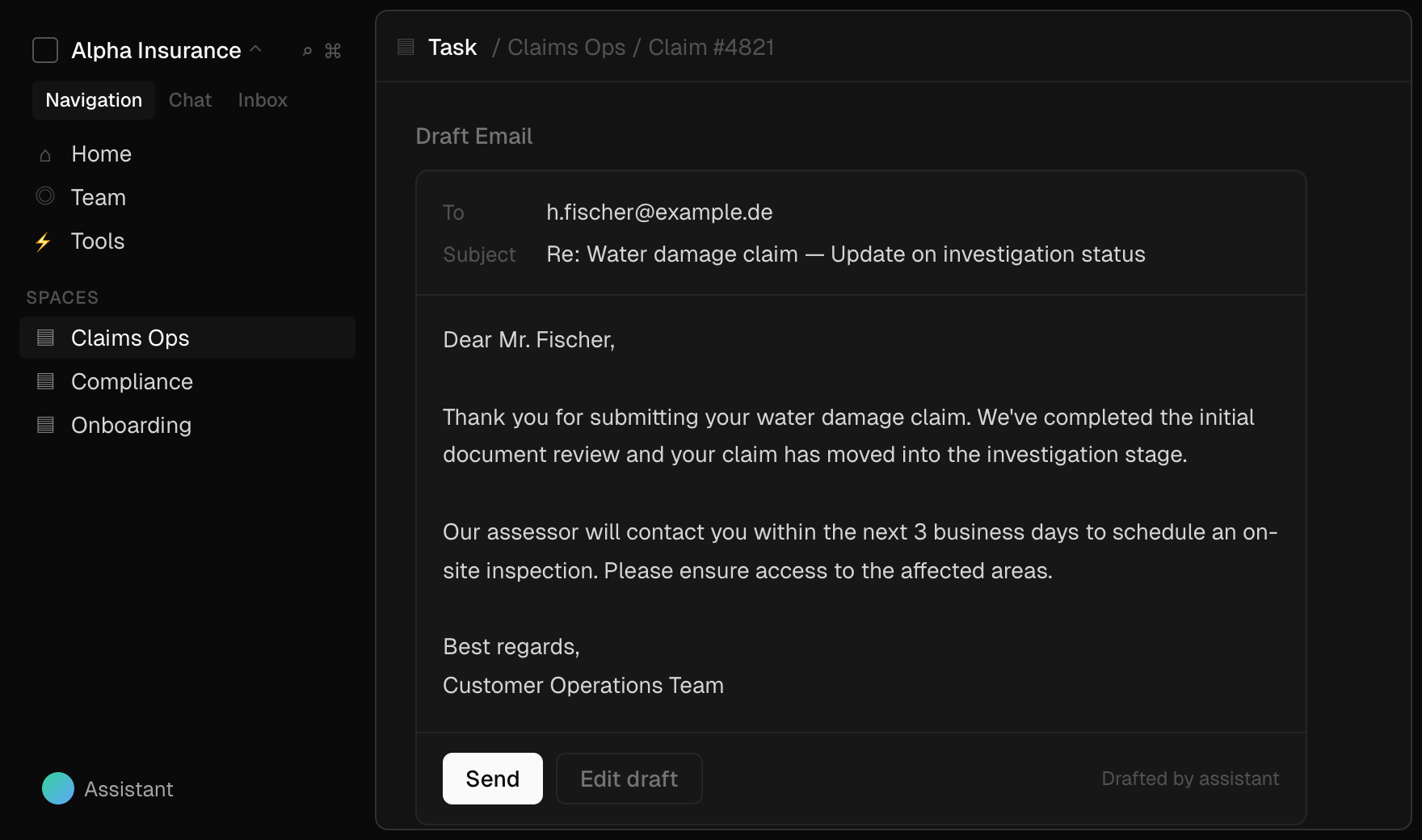
Agent ExperienceThe full email lifecycle now lives inside the platform. The assistant can compose drafts informed by the full context of a case (prior correspondence, attached documents, conversation history) and refine them through conversation. When you're ready, send directly from Interloom.
Replies are automatically routed back to the correct task thread using cryptographically signed reply-to addresses, keeping the entire exchange in one place.
Combined with incoming email support, this closes the loop: inbound mail creates tasks, the agent drafts responses from case context, you review and send, and replies land back in the same thread. If your workflows run on email, everything now lives in one place instead of split between inbox and case management.
External API Access
Tools & IntegrationsThe agent can now make HTTP requests and GraphQL calls to external services on your behalf. It can query REST APIs, pull data from GraphQL endpoints, and interact with external platforms: fetching data from an internal tool, checking order status in a third-party system, or pushing updates to an external service.
Combined with MCP integrations, this lets the agent reach into the systems your team depends on without requiring custom development.
Code Interpreter
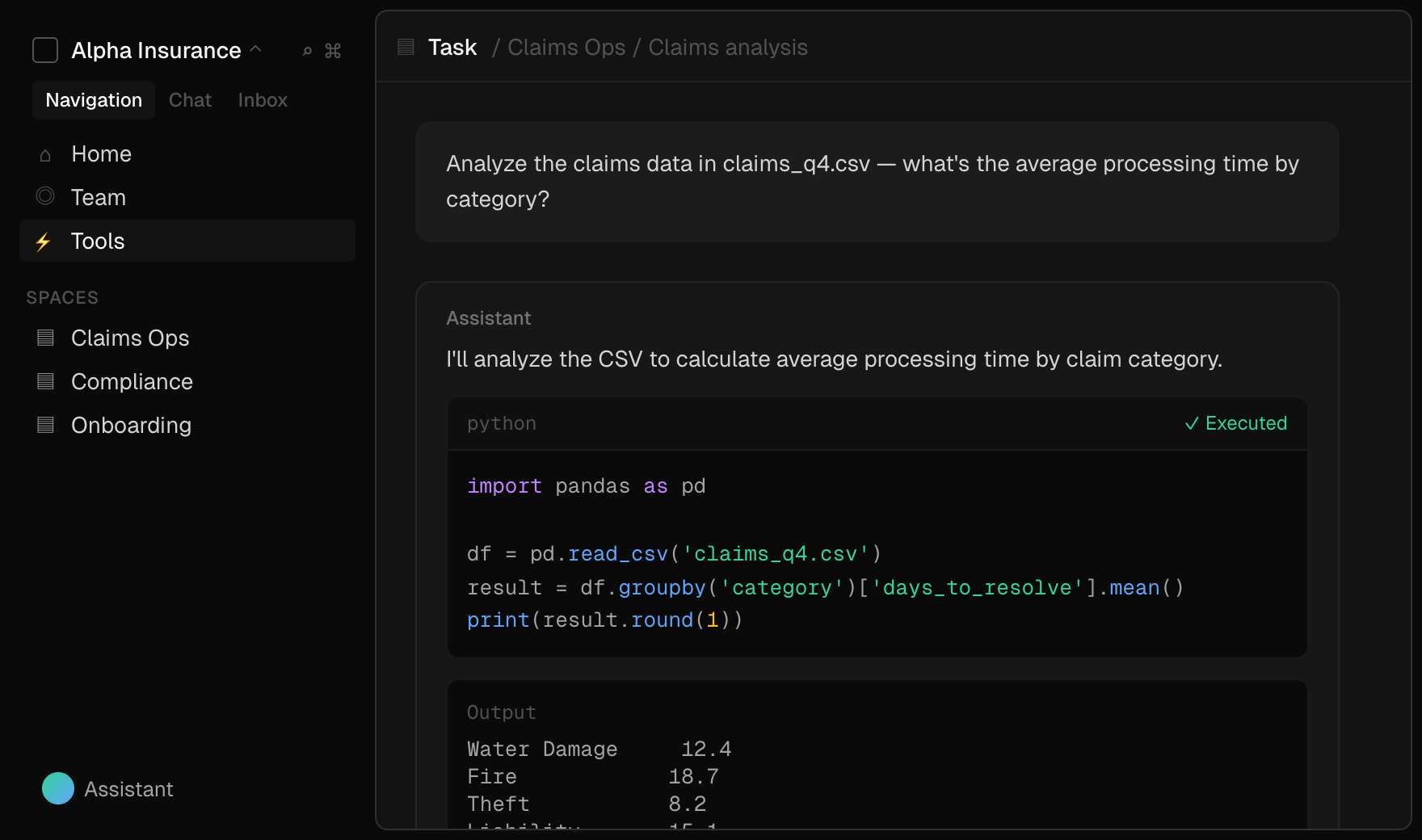
Tools & IntegrationsThe assistant can now write and run Python code in a secure, isolated sandbox. This opens up data analysis on uploaded spreadsheets, chart generation, data transformations, and automated report building, all within your task thread.
Upload a CSV, ask a question, and the agent writes the code, runs it, and gives you the results. The sandbox is fully isolated with no access to your systems. If you've been exporting data to a separate analytics tool and copying results back, that whole round-trip collapses into a single conversation.
Agent Reasoning and Reliability
Agent ExperienceWhen the assistant works through a complex request, you can now see its thinking in real time. A "thinking" step appears in the conversation showing how the agent breaks down the problem, weighs approaches, and picks its tools.
This makes it easy to follow the agent's logic, catch misunderstandings early, and course-correct if its reasoning goes in the wrong direction.
The agent is also more reliable at multi-step work. It now knows when it's actually done: it can run multiple tools in sequence, chain results together, and stop cleanly once the task is resolved. Something like "search this document, cross-reference it with the case, draft a response, and update the record" works as one continuous sequence instead of needing nudges between steps.
MCP Tool Integrations
Tools & IntegrationsWe now support the Model Context Protocol (MCP), an open standard for connecting AI assistants to external tools and services. Your organization can plug in custom integrations to internal APIs, proprietary databases, or third-party services specific to your industry.
If you have a system your team relies on daily, it can become part of the agent's toolkit. The agent's capabilities grow with your needs rather than being limited to what ships out of the box.
SharePoint Integration
Tools & IntegrationsThe assistant can now search your organization's SharePoint document libraries directly from Interloom. While working through a case, it can locate policies, templates, contracts, or reference materials stored in SharePoint without you switching tabs.
This connects your document management system to your active casework, so the information you need is always close at hand.
Automatic Task Summaries
Agent ExperienceTasks now get automatically generated summaries that capture the key points from every conversation thread. As discussions unfold across messages, emails, and agent interactions, a concise summary builds up at the top of the task.
If you're picking up a case you weren't part of, or coming back to a task after days away, summaries save you from scrolling through entire conversation histories.
Procedure Stages
Agent ExperienceProcedures can now be broken down into sequential stages. Define what a case moves through (intake, review, resolution) and track progress as work advances.
Stages give teams a shared view of where things stand and what comes next, replacing ad-hoc status updates with a clear visual progression. Especially useful for standardized processes like onboarding, claims processing, or compliance reviews.
Workspace Navigation and Files
User ExperienceSpaces now appear directly in the sidebar, giving you one-click access to any workspace without drilling through menus. Each space also gets a dedicated Files tab where you can browse, preview, and manage all its documents and attachments in one place.
If you're managing dozens of spaces with hundreds of files, this makes a real difference. Finding the right document takes one click instead of three.
Tags
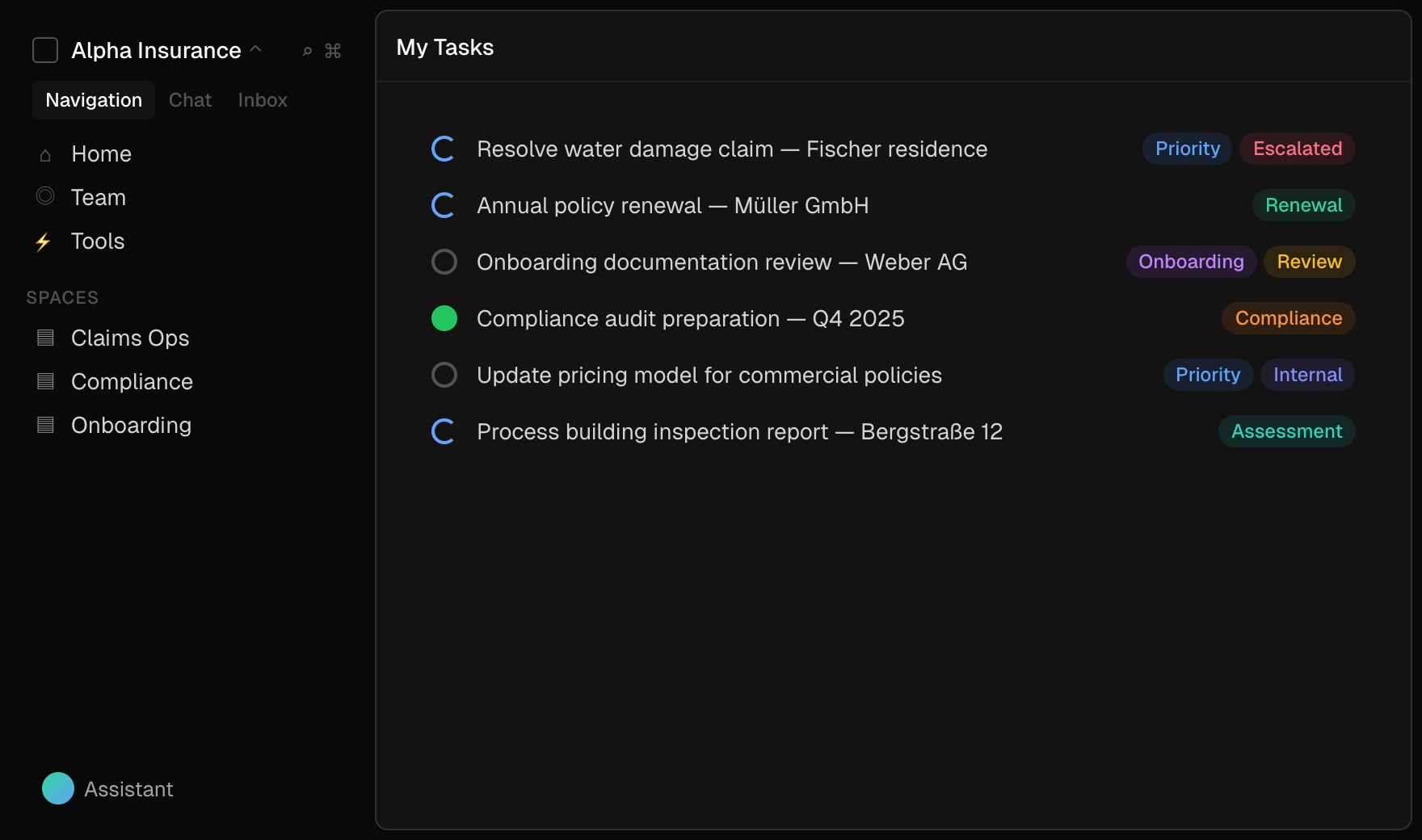
User ExperienceA flexible tagging system for organizing work. Apply custom tags to any task, then filter, search, and group by whatever matters to your team: priority, client, department, or anything else. Tags show up on task cards and in list views, making it easy to spot patterns and find related work.
A tag picker lets you search and apply tags as you type. The assistant can also suggest and apply tags automatically based on task content, so things stay organized without extra effort.
Predictive Next Steps and Plan Execution
Agent ExperienceThe assistant is now more proactive. After completing an action, it looks at the current state of your task and suggests next steps, including follow-ups you might not have thought of and which specialist agent to use.
Agents can also apply structured plans directly. Instead of just suggesting what to do, the assistant can take a plan and execute it step by step. Give it a high-level goal and it works through the sequence on its own.
Rebuilt Rich Text Editor
User ExperienceWe've rebuilt the text editor from scratch on Tiptap. It's faster and more reliable across notes, task descriptions, and messages.
Formatting is more intuitive, link handling works as you'd expect, and complex content like entity references and inline mentions no longer has the quirks of the old version. If you spend your day writing inside Interloom, you'll feel the difference.
Permission-Aware Search
SecurityDocument search now fully respects workspace permissions. When the assistant searches your document library, it only returns results the current user has access to, filtering out files and notes from other spaces or restricted contexts.
Search queries are batched for performance, so permission checks don't slow things down even across large libraries.
File Viewer
User ExperienceFiles can now be opened and viewed directly inside Interloom, without downloading or switching to another app. The file panel supports PDFs with page navigation, images with inline preview, email files (.eml) with formatted rendering, and a dedicated view for notes with attachments.
Open any file from a conversation thread, a task's files panel, or search results. It appears in a side panel alongside your current work, with metadata and properties in a consistent format.
For document-heavy workflows, this means reviewing a contract or checking an attachment happens right next to the conversation where it's relevant. No more bouncing between tabs.
Citations and Document Transparency
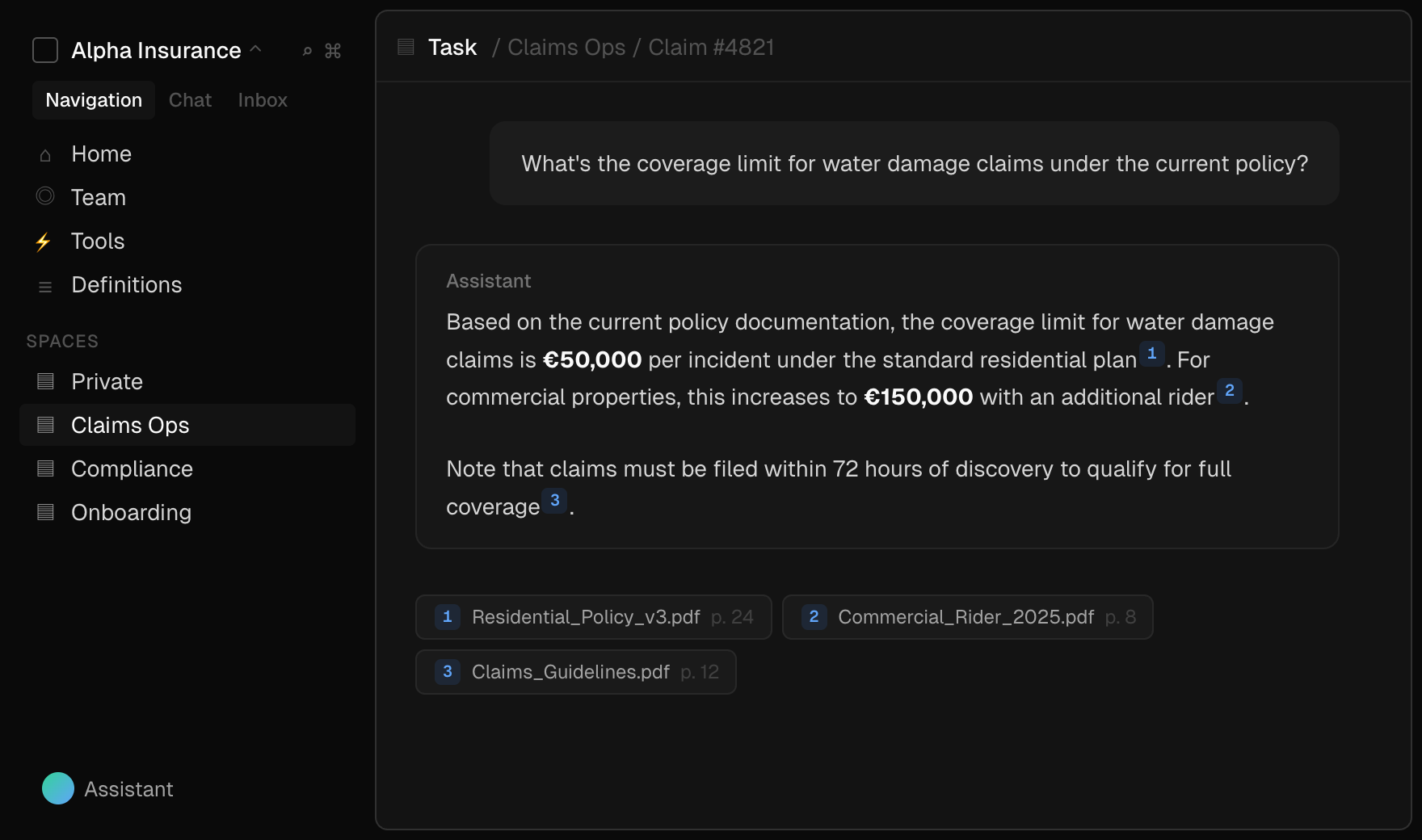
Tools & IntegrationsWhen the assistant draws on documents in your workspace, every reference is now traceable back to its source. Responses include inline citations: clickable references that link to the specific passage the agent used. Click one and you go straight to the source material.
This gives you a clear chain from answer to evidence. You can verify the agent's reasoning, trace a conclusion to its origin, and build trust in what it produces, especially when accuracy matters.
Every file now also shows its indexing status (processed, currently indexing, or pending), so you always know when a document is available to the agent. No more guessing whether the AI has access to a file or where it got its information.
Global Search
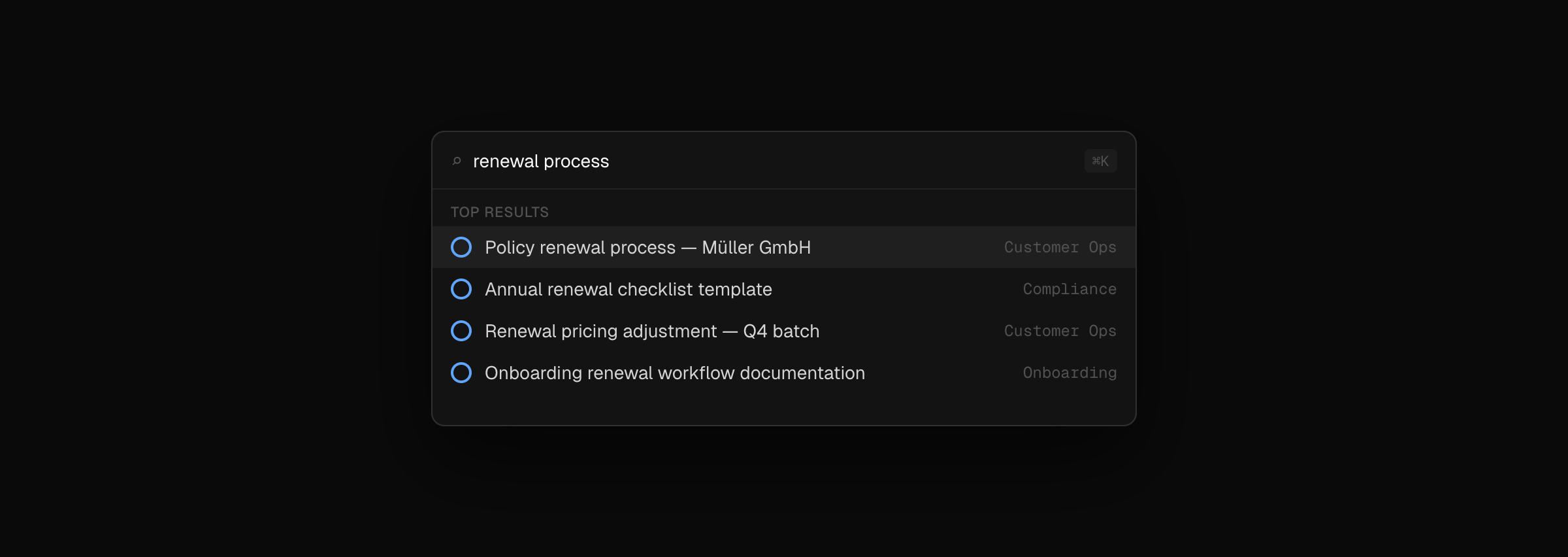
User ExperienceA new platform-wide search makes it possible to find any task across your workspace instantly. Type a query and results come back ranked with highlighted matches, so you can scan and find what you need in seconds.
Search is accessible from the nav bar or via keyboard shortcut, and results open in the panel view so you never lose your place. It's backed by precomputed vectors and a dedicated search service, so it stays fast even at scale.
Document Search
Tools & IntegrationsEvery document in your workspace (files, notes, attachments) is now automatically ingested and indexed, so the assistant can search across all of it. Documents are processed in the background and broken into meaningful chunks that the agent pulls from when answering questions or working through a case.
When you ask the agent something, it goes beyond the conversation thread and searches your full document library, citing specific sources in its response.
For teams with large volumes of reference material like policies, contracts, and prior correspondence, this means the assistant draws on the same institutional knowledge your team does, without anyone having to point it to the right file.